
My Gorelo ticket queue lives in my Omarchy bar now
I’ve run an MSP for a long time. The tools have changed many times over, but the shape of the day hasn’t: there’s a ticket queue, and you’re either in it or you’re wondering what’s waiting in it.
We use Gorelo at Chatswood Computer Consultants, and it’s a genuinely good modern RMM and PSA. But it lives in a browser tab, and browser tabs are where attention goes to die. I’d be halfway through something, a client would call, and the next three minutes were spent finding the tab, finding the ticket, and finding where I’d been.
I put Omarchy on a spare laptop in September, and now it runs my main laptop too. The desktop is still Windows 11 and WSL2 for now, but it may not be for long. Gorelo has no Linux agent, and that’s fine, because this was never about managing my own machine. It’s the tech’s side of the desk. So I put the queue in the bar.
The queue, one click away
The bar shows the Gorelo mark and a count of open tickets assigned to me. The count goes bold when something is unread or urgent, and otherwise stays quiet like the rest of the bar.
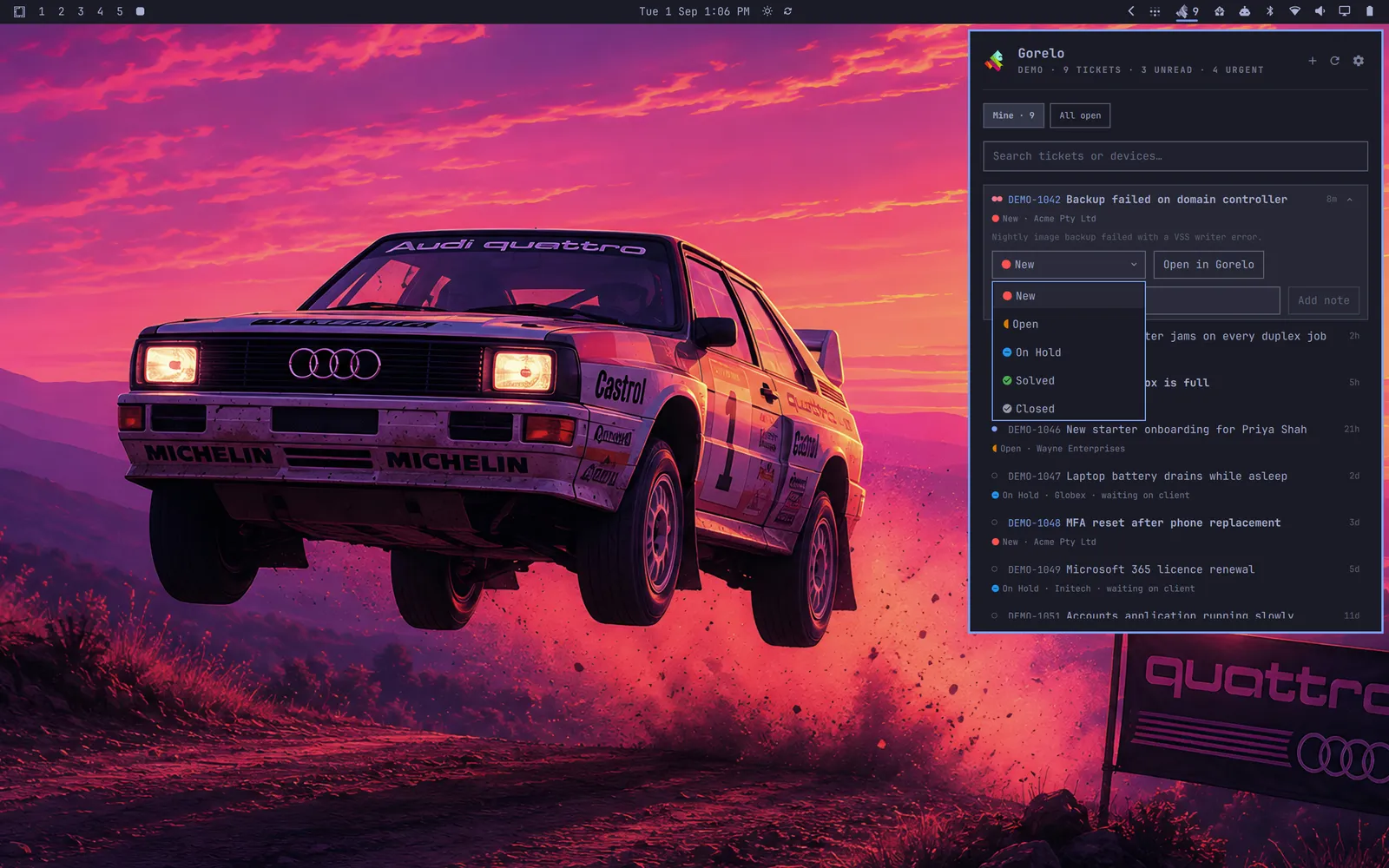
Click it and you get Mine and All open, sorted urgent-first then by last update. Each row has the status in Gorelo’s own colours, the client, the age, and whether it’s waiting on the client. Unfold one and you can change its status, assign it to yourself, add a private note, or jump to it in the browser when you actually need the full ticket. Most of the time I don’t.
It’s keyboard-first, like every other Omarchy panel: j/k to move, Enter to unfold, / to search.
Find the machine, not just the ticket
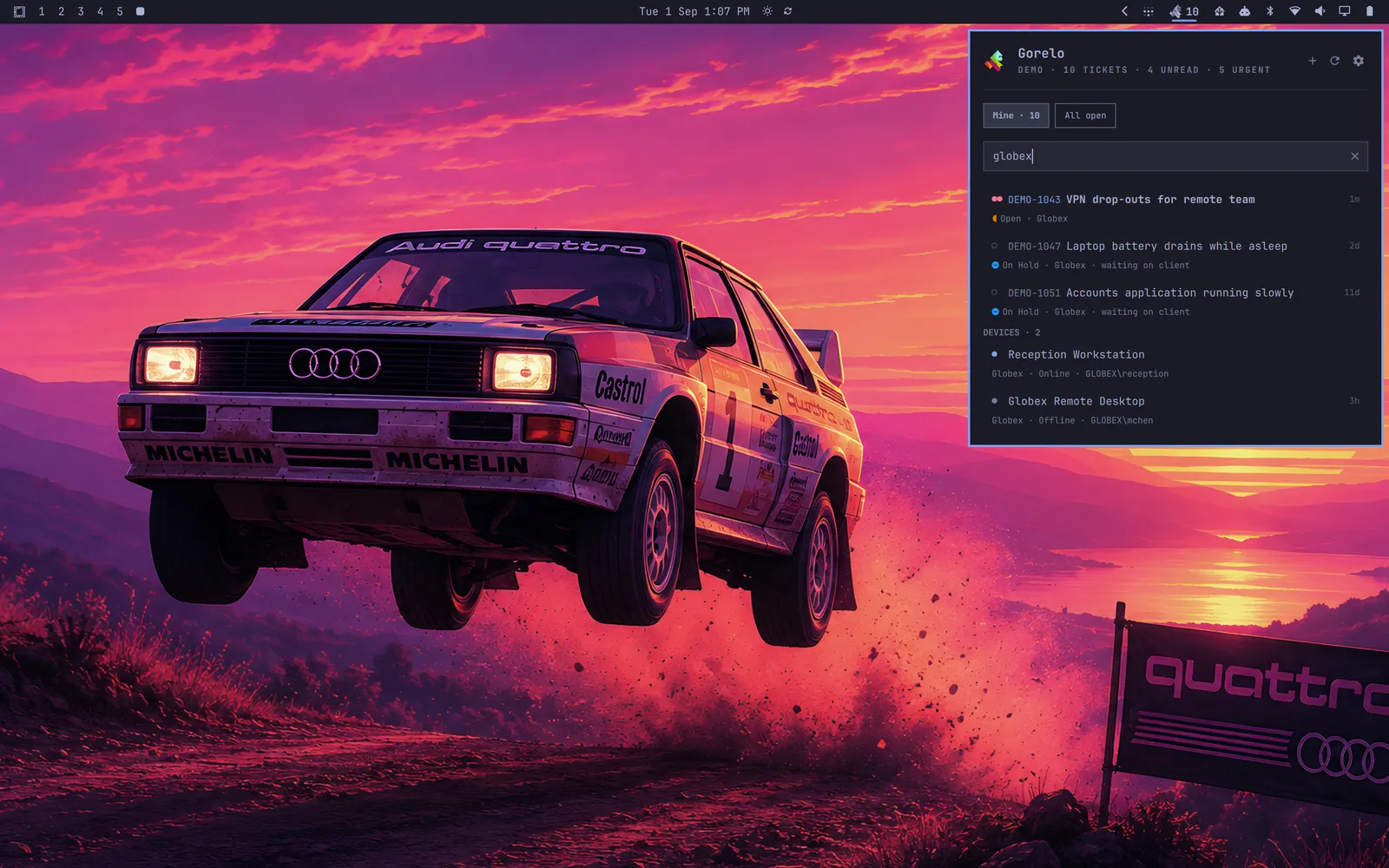
When a user rings, you rarely know the ticket number. You know their name, or a hostname, or “the laptop in reception”. The search box filters the queue as you type and also matches managed computers by device name or last logged-on user, with exact hostnames ranked first. Press Enter and it asks Gorelo for more, including closed tickets.
A ticket with a screenshot, in seconds
This is the one I use most. Right-click the bar icon (or bind a key) and a quick-ticket overlay drops down: client, title, priority, description. Add screenshot… hides the overlay, runs Omarchy’s region capture, and comes back with the image attached. The ticket lands assigned to me with my defaults and opens in the browser.
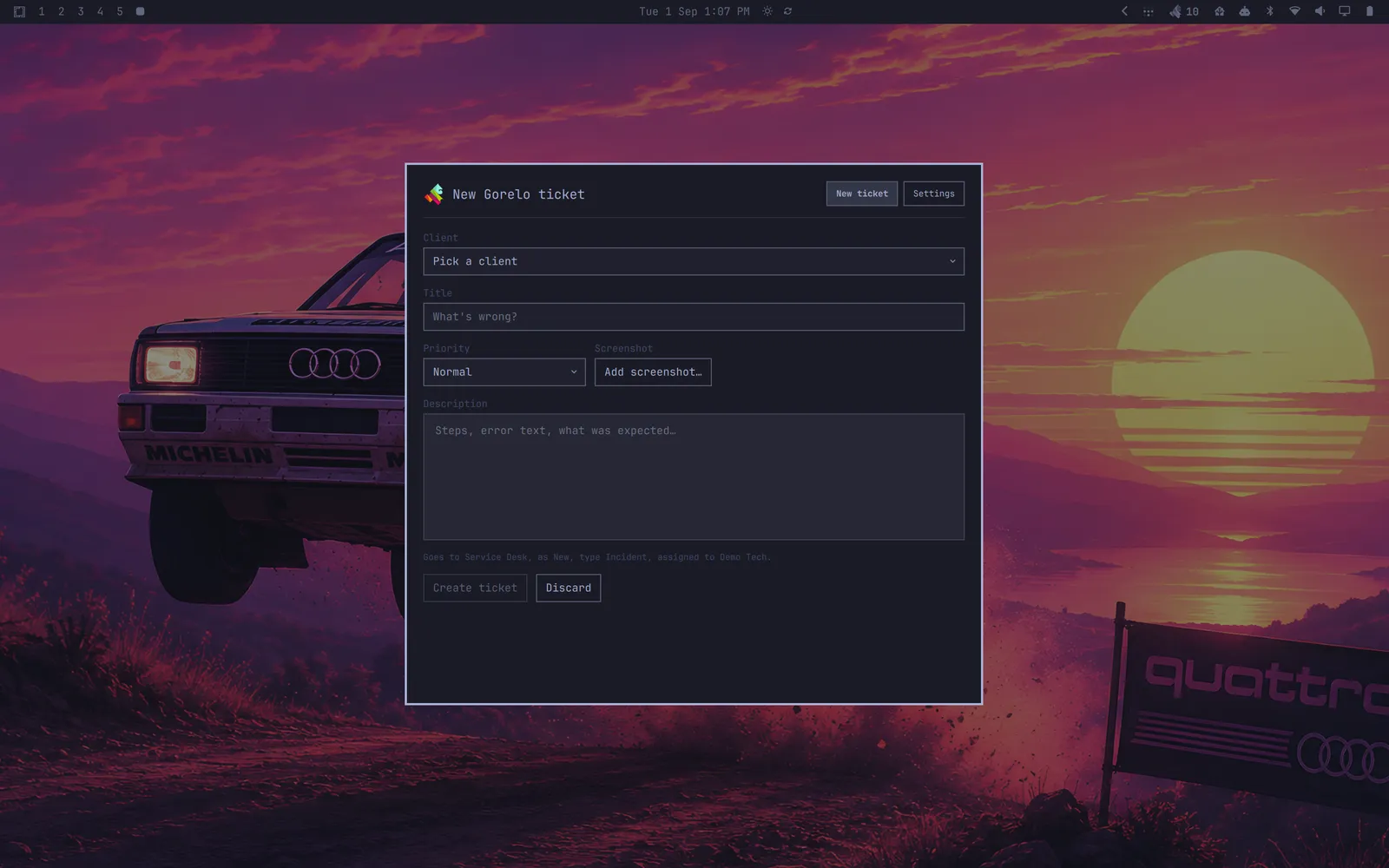
Anything I see on screen that should be a ticket becomes one before I’ve had time to forget it.
Built carefully
It’s an MSP tool holding an organisation-wide API key, so I treated it like one. The key lives in the system keyring and never touches the config file, logs or process arguments. Requests are HTTPS only, never follow redirects, and only go to the Gorelo region you picked. Everything the API returns renders as plain text. The README is honest about what’s verified and what isn’t.
There’s also a demo mode with a fake MSP full of sample tickets, so you can try it without a tenancy. Every screenshot here is demo data.
Install
omarchy plugin add https://github.com/vichong/omarchy-gorelo.git --enableThen click the gear, pick your region, paste an API key from Settings → Integrations → API keys in Gorelo, and tell it which technician you are. It’s also listed on the Omarchy plugin marketplace.
Gorelo is working on browser-based remote control. Once there’s a supported way to launch a session from outside the app, a Connect button is the obvious next thing.
This is an independent project, not affiliated with or endorsed by Gorelo. If you’re an MSP on Omarchy, I’d love to hear how it goes.